![venari-security-logo-2022-1.png]](https://vhub.venarisecurity.com/hs-fs/hubfs/Imported%20images/venari-security-logo-2022-1.png?height=40&name=venari-security-logo-2022-1.png)
Overview: What Does the Sensor Do?
The Venari Sensor is designed to observe mirrored (copied) network traffic from EC2 instances in your AWS environment. It does not interfere with live traffic. The captured traffic undergoes an initial local analysis on the sensor, and only metadata is sent securely to the Venari platform for further and deeper analysis.
Cloud Network Topology
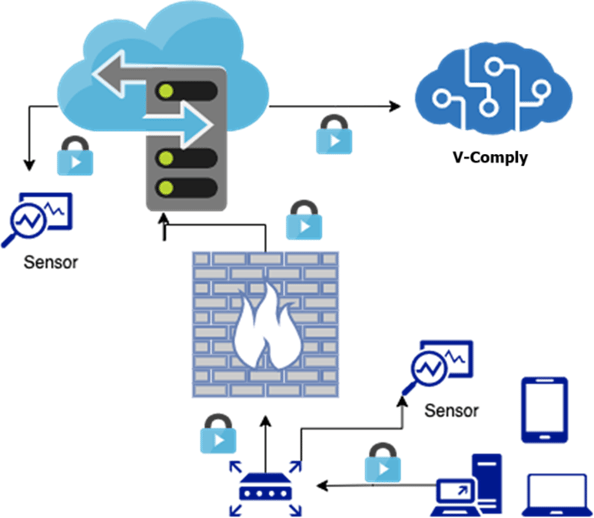
If you haven’t received the CloudFormation template yet, please contact support@venarisecurity.com to get the file.
The CloudFormation template automatically provisions and configures all necessary AWS resources — including the EC2 instance, security groups, network interfaces, IAM roles, and traffic mirroring. No manual setup is needed beyond supplying the required parameters listed in the prerequisites.
If you plan to monitor additional EC2 instances, you’ll need to create traffic mirror sessions for each one. Use the ENI of each instance as the source, and the mirror target generated by the CloudFormation stack as the destination. This process can also be automated using a script, which is especially helpful when dealing with a large number of instances.
How Does Traffic Mirroring Work?
Using AWS Traffic Mirroring, you can configure an EC2 instance's network interface (ENI) to send a copy of its network traffic to another EC2 instance — in this case, the Venari Sensor — over a VXLAN tunnel.
-
The source ENI (the monitored EC2) mirrors traffic to the sensor’s capture interface (
eth1) -
Mirrored traffic is encapsulated in VXLAN over UDP, using port 4789 and a configurable VNI
-
This method is non-intrusive and doesn’t affect the source instance’s performance or behavior
Prerequisites
Before deploying the CloudFormation stack
-
Access Credentials: You should have received your V-Comply UI access link and login credentials via email from Venari Support. If not, or if you've lost them, please reach out to us.
- Gather Parameters for the CloudFormation template: When deploying the stack in AWS, you will be prompted to provide parameters that are necessary for the sensor installation and configuration. Below you will find the steps to find each one of them.
Register Your Sensor on V-Comply
Before installing the sensor, it must be registered in V-Comply using your user account. To do this, follow the steps below within the V-Comply UI.
-
Log in to V-Comply UI (link provided via email)
-
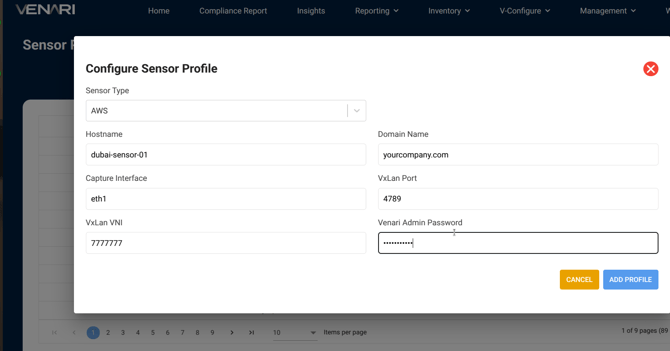
Go to V-Configure > Sensor Profile
-
Click Configure Sensor Profile
-
Fill in:
-
Sensor Type:
AWS -
Hostname: Choose a unique name (e.g.
dubai-sensor-01) -
Domain Name: e.g.
yourcompany.com→ full FQDN:dubai-sensor-01.yourcompany.com -
Capture Interface:
eth1 -
VXLAN Port:
4789(default) -
VXLAN VNI:
7777777 -
Venari Admin Password: Define a secure password for SSH access
-
-
Click ADD PROFILE
-
Copy the token and keep it for later use during the CloudFormation stack creation
Keep this token secure. It contains sensitive configuration information.
What is VXLAN Port (UDP 4789)?
This is the port used to encapsulate mirrored traffic inside UDP packets. It allows AWS to deliver mirrored traffic to the sensor instance.
What is VXLAN VNI (Virtual Network Identifier)?
A unique ID that identifies a mirrored traffic stream inside the VXLAN overlay. It's like a VLAN tag but for virtual networks.
Your Public IP Address (in /32 CIDR format) to Access the Sensor via SSH
Your home or office IP will be allowed to SSH into the sensor.
-
Note your IP and append
/32
Example:203.0.113.42/32
Important: A CIDR suffix (such as /32 for a single IP or a broader range like /24) is required — omitting it will cause CloudFormation to fail.
Source Network Interface ID (ENI) to Mirror
-
Go to the EC2 Console
-
Select the EC2 instance to monitor
-
In the Networking tab, find Network interfaces
-
Copy the ENI ID (e.g.
eni-0abc123456789def)
Venari Sensor AMI
The AMI (Amazon Machine Image) is a private sensor image provided by Venari. The correct AMI ID will be shared with you upon request by the Venari Support team.
-
Example (for illustration only):
ami-0abcd1234e5f67890 -
Once shared with your AWS account, it will appear in the EC2 Console > AMIs > Private Images
If you haven’t received the AMI yet, please contact support@venarisecurity.com to request access.
Make sure to include:
-
Your AWS Account ID
-
The AWS Region where you plan to deploy the sensor
VPC and Subnet Info
Get these from the AWS VPC console:
-
VPC ID: e.g.
vpc-0123abcd -
VPC CIDR Block: e.g.
10.31.0.0/16 -
Subnet ID: Where the sensor will be launched (should have Internet access)
Choose EC2 Instance Type
The following table describes the recommended system requirements based on expected traffic volume. For higher throughput or tailored deployments, please contact Venari Support for guidance.
The Venari Sensor EC2 instance type must be a Nitro-based instance (T3, M5, C5, etc.) and sized based on expected traffic.
| CPU | Memory | Max Throughput |
|---|---|---|
| 4 Cores | 16 GB | 250 Mbps |
| 8 Cores | 32 GB | 500 Mbps |
| 16 Cores | 64 GB | 1 Gbps |
Deploy the CloudFormation Stack
-
Go to AWS CloudFormation Console
-
Click Create Stack > With new resources (standard)
-
Upload the CloudFormation template file you received from the Venari Support.
-
Click Next
Fill in the Parameters
Use the information gathered earlier:
| Parameter | Example Value |
|---|---|
ClientOfficeOrHomeIP |
203.0.113.42/32 |
VenariToken |
aHR0cHM6Ly9hcGkt... |
SourceNetworkInterfaceId |
eni-0abc123456789def |
VenariSensorAMI |
ami-0abcd1234e5f67890 |
SubnetID |
subnet-0a1b2c3d4e5f67890 |
InstanceType |
t3a.large (or another Nitro-based instance type, depending on throughput) |
VpcID |
vpc-0123abcd |
VpcCIDR |
10.31.0.0/16 |
VXLANPort |
4789 |
VirtualNetworkId |
7777777 |
 Click Next, leave the rest as default, and acknowledge IAM changes when prompted. Then click Create Stack.
Wait for Stack Creation
Monitor progress in the CloudFormation Console. After a few minutes, the status should be:
CREATE_COMPLETE
After Deployment
The sensor instance is now running. It has:
-
A management interface for SSH, updates, and communicating with the V-Comply backend and servers.
-
At least 1 capture interface to receive VXLAN mirrored traffic
The auto-install script will automatically run using your token, setting up the sensor and registering it with V-Comply.
Access the Sensor (Optional)
To connect via SSH:
ssh venariadmin@<sensor-public-ip>
Use the Venari Admin Password you configured in V-Comply during the first step.
Final Step – Send Sensor Public IP to Venari
To enable communication with the V-Comply backend, you must send the sensor's public IP to the Venari Support team: support@venarisecurity.com
-
Go to the EC2 Console
-
Select the sensor instance
-
Copy the IPv4 Public IP
-
Email it to Venari's support team
Why?
For security, only whitelisted sensor IPs are allowed to send data to the V-Comply backend. Without this step, the sensor won’t work, and V-Comply won't show any data.
Deletion
This is not a step in the installation process.
Only perform this action if you intentionally want to remove the sensor and all associated AWS resources.
If you wish to delete the sensor setup:
-
Go to CloudFormation Console
-
Select your stack
-
Click Delete
This will remove all associated resources, including the EC2 instance and network components.
Installing the sensor on-premise?
If you're deploying the sensor on-premise, follow this guide instead: How to Manually Install the Venari V-Comply Sensor On-Premises
Need Help?
We're here to help. Please visit this page for more information on how to get in touch with Venari's Support team
Thank you for securing your network with Venari.
Your sensor is now actively monitoring encrypted traffic metadata for actionable insights.