![venari-security-logo-2022-1.png]](https://vhub.venarisecurity.com/hs-fs/hubfs/Imported%20images/venari-security-logo-2022-1.png?height=40&name=venari-security-logo-2022-1.png)
Step 1 – Log in to the Platform
Log in using the credentials provided by the Venari Support team.
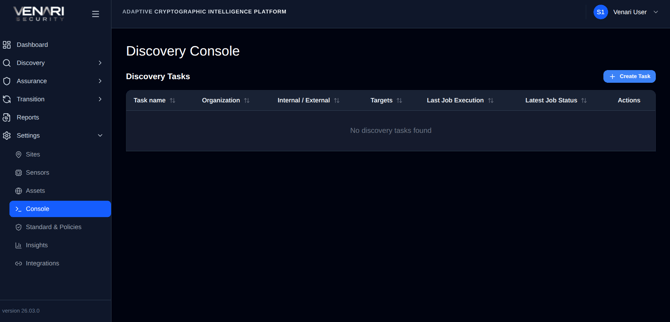
Step 2 – Access the Discovery Console
-
From the left-hand menu, navigate to:
-
Settings → Console
-
-
Click the “Create Task” button (top-right)
This opens the task creation window.
Step 3 – Configure Your Scan Task
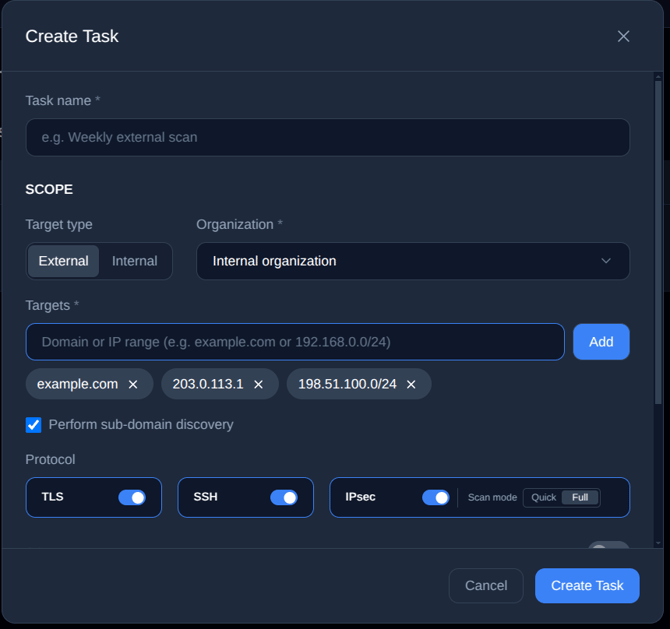
1. Task Name
-
Enter a descriptive name (e.g., Weekly External Scan)
2. Scope Configuration
-
Target Type: Select External
-
Organization:
-
Choose Internal organization if scanning your own assets
-
Or select the relevant organization if scanning for a partner
-
Important Note
Only scan external assets you are explicitly authorized to scan:
-
Your own organization’s public assets
-
Partner assets (with permission)
-
Third-party assets (only if formally approved)
Unauthorized scanning may violate legal or compliance requirements.
3. Targets
Enter one or more:
-
Domain names (e.g.,
example.com) -
Public IPs (e.g.,
203.0.113.1) -
IP ranges in CIDR format (e.g.,
198.51.100.0/24)
Ensure all IPs are public
4. Subdomain Discovery
-
Enable “Perform sub-domain discovery” if scanning domains
5. Protocol Selection
Choose which services to scan:
-
TLS – HTTPS / certificates
-
SSH – Remote access endpoints
-
IPsec – VPN services
For IPsec:
-
Quick scan → faster scanning of a curated set of IPsec transforms
-
Full scan → more thorough scanning, going through all IPsec transforms (can take hours)
Step 4 – Launch or Schedule the Scan
Option A: Immediate Scan
-
Click “Create Task”
-
Then click the Run task now button that appears afterward

Option B: Scheduled Scan
-
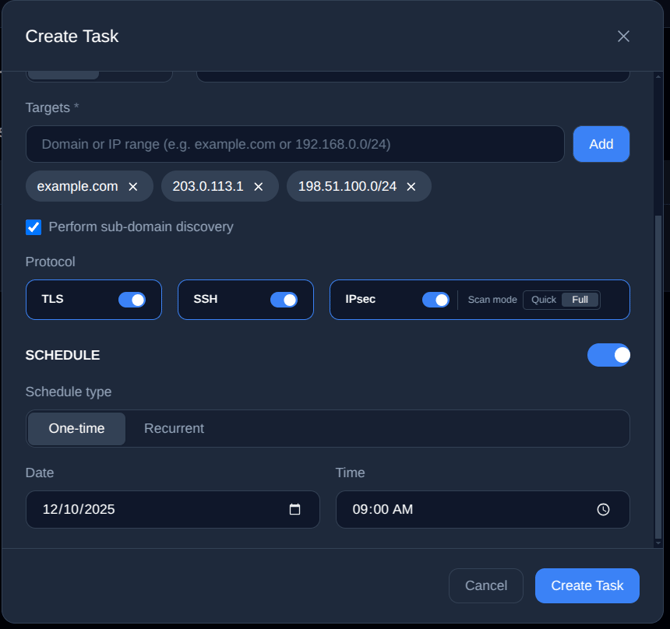
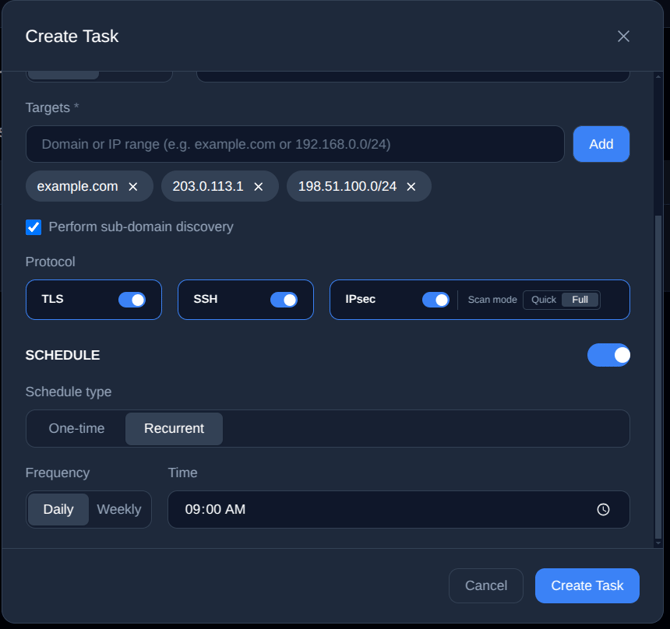
Enable the Schedule toggle
-
Choose:
-
One-time → Set a specific date & time
-
Recurrent → Daily or weekly execution
-
Step 5 – Monitor Scan Progress
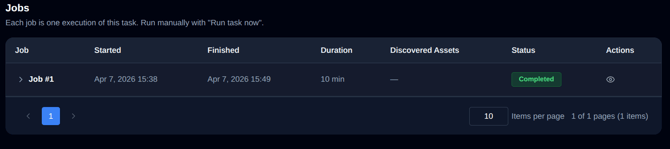
Once triggered, the platform shows:
-
Status: In Progress, Failed, Completed
-
Progress percentage (when actual scanning of discovered assets begins)
Step 6 – View Results
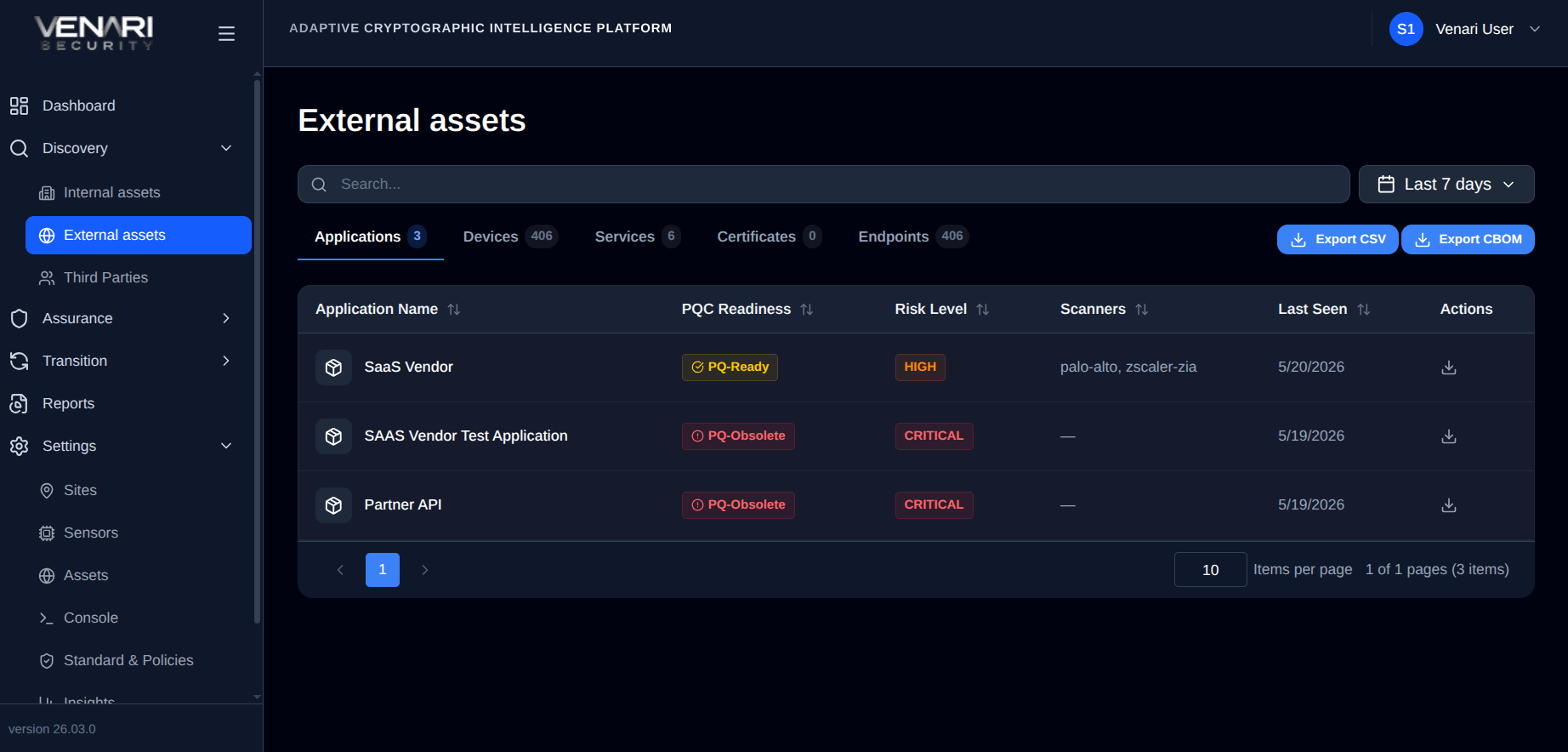
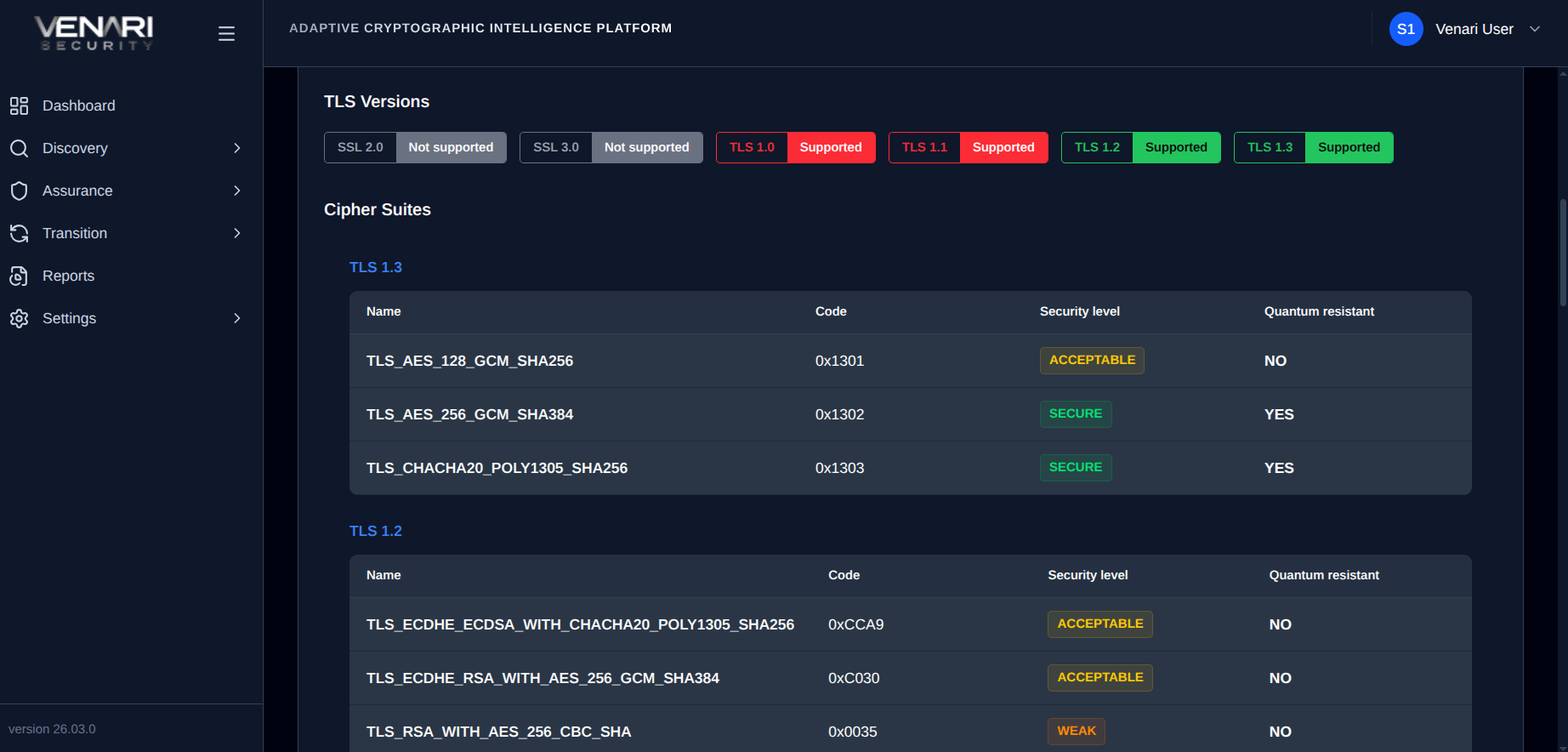
You can either check the scan results in the "Discovery → External" page or in the Dashboard
Discovery → External
-
View discovered assets:
-
Applications
-
Devices
-
Services
-
Certificates
-
Endpoints
-
-
Export options:
-
CBOM
-
CSV
-
Dashboard
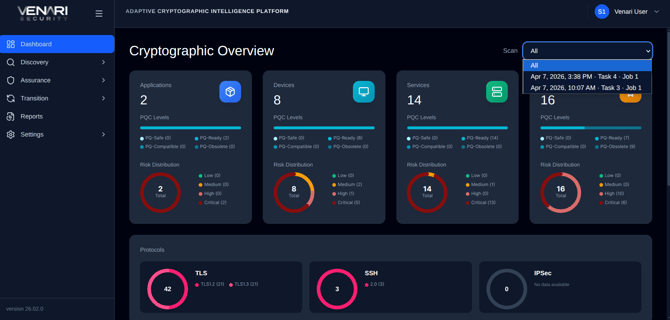
- You can select specific scan data
Additional Insights
-
Encryption usage visibility
-
Post-Quantum Cryptography (PQC) readiness indicators
Need Help?
If you encounter any issues with the scans or the platform or have any questions, we're here to help. Please visit this page for more information on how to get in touch with Venari's Support team