![venari-security-logo-2022-1.png]](https://vhub.venarisecurity.com/hs-fs/hubfs/Imported%20images/venari-security-logo-2022-1.png?height=40&name=venari-security-logo-2022-1.png)
What is the Venari Sensor?
The Venari Sensor is an appliance that sits in your network (or cloud) and observes copied (“mirrored”) network traffic directed to it. It does not sit inline on production paths to modify live traffic; it analyzes a mirror of that traffic on a dedicated capture interface.
On the appliance, traffic undergoes initial local processing so that encrypted traffic metadata (and related signals your deployment is configured for) can be derived efficiently. Only metadata is sent from the sensor to the Venari platform for correlation, deeper analysis, and presentation in the UI.
In practice you use the sensor to extend visibility into encrypted and east-west traffic without replacing your existing security stack, and you operate it through SSH into VenariOS, where the text menus documented below live.
Deployment is separate from this guide: how you mirror traffic, size the VM, and register the sensor depends on whether you are on AWS, Azure, on-premises, or another supported model.
Related documentation (installation & registration)
Use these articles to deploy the appliance or register it with the Venari platform; this page focuses on what each console menu does after you can SSH to the sensor.
| Topic | Article |
|---|---|
|
AWS (CloudFormation): mirrored traffic over VXLAN, stack parameters, AMI, SSH, IP allowlisting
|
|
|
On-premises / hypervisor: ISO install, capture vs management interface, token registration, connectivity checks
|
Those guides cover prerequisites (for example sensor profile / token, whitelist of the sensor IP for platform connectivity, and traffic mirroring concepts on AWS). Once installation is complete, ssh venariadmin@<sensor-ip> (using the password you set in the sensor profile in the Venari platform, as described there) is the typical entry point to the Main Menu described in the sections that follow.
First-time setup (initial configuration)
On a new or reset appliance, a first-run wizard may run before the standard menus appear. It walks through initial network and sensor configuration (for example, assigning a static IPv4 address to the management interface).
Important: At the end of initial configuration you may be logged out automatically. If the management IP address changes, update your SSH client or jump host so it targets the new address before reconnecting.
After initial configuration completes, the Main Menu is shown whenever you open the console menu.
Understanding the screen
Header

Each menu screen shows a Venari Security / VenariOS header and the title of the current menu.
Status footer

Many screens include a status area at the bottom with live context, for example:
- VenariOS version
- Tenant ID (may show as unset until configured)
- Management interface name and IPv4 address
- Capture interface(s) (may show as unset until configured)
- Load average (1, 5, and 15 minutes)
Use this footer to confirm identity and basic health at a glance.
Navigation conventions
| Input | Typical behavior |
|---|---|
|
Number / letter shown in the menu
|
Opens that option
|
|
R
|
Return : go back to the previous menu
|
|
Z
|
Log out : available on the Main Menu and on several top-level menus that implement it; use R to step back if you are in a nested screen
|
|
Invalid choice
|
Usually clears and redraws the menu
|
Exact behavior can vary slightly by screen; when in doubt, use R to move up one level.
Main Menu
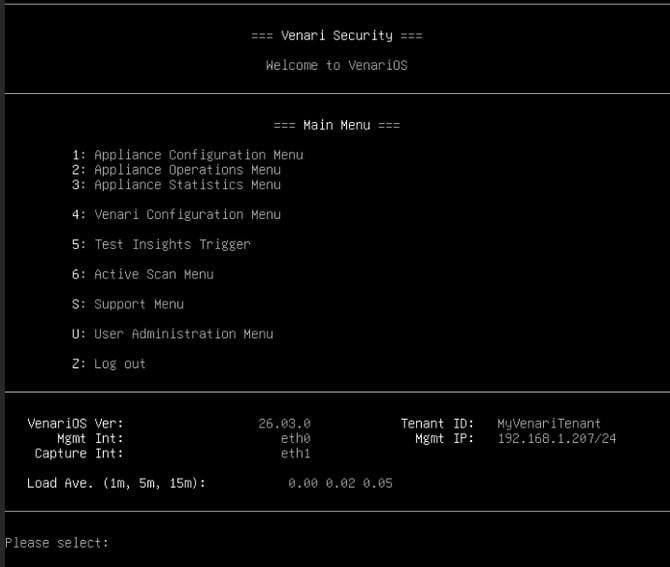
The Main Menu is the home screen after setup. Options:
| Option | Name |
|---|---|
|
1
|
Appliance Configuration Menu
|
|
2
|
Appliance Operations Menu
|
|
3
|
Appliance Statistics Menu
|
|
4
|
Venari Configuration Menu
|
|
5
|
Test Insights Trigger
|
|
6
|
Active Scan Menu
|
|
S
|
Support Menu
|
|
U
|
User Administration Menu
|
|
Z
|
Log out
|
1. Appliance Configuration Menu
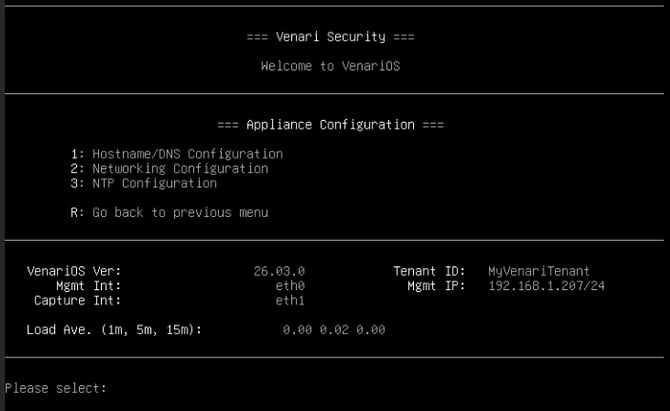
Use this area for local appliance settings: hostname/DNS, networking, and time sync.
Hostname/DNS Configuration
| Option | Purpose |
|---|---|
|
1
|
Change hostname / domain name
The resulting combination needs to be a valid FQDN
|
|
2
|
Change DNS servers
|
Networking Configuration
| Option | Purpose |
|---|---|
|
1
|
Configure the management network interface
|
|
2
|
Configure VXLAN network interfaces used for traffic capture
|
|
3
|
Restart networking (apply or recover network stack changes)
|
NTP Configuration
Shows current NTP sources and statistics (via chronyc), and allows:
| Option | Purpose |
|---|---|
|
A
|
Add an NTP server
|
|
D
|
Delete an NTP server
|
2. Appliance Operations Menu
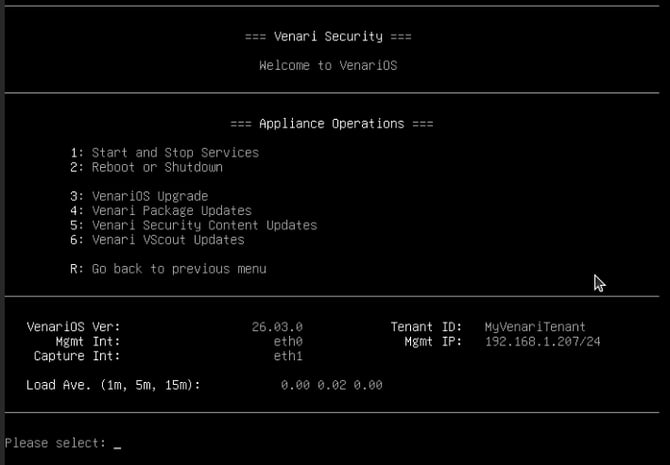
Day‑to‑day service control, power, and software updates.
| Option | Name | Summary |
|---|---|---|
|
1
|
Start and Stop Services
|
Manage Venari systemd services (e.g. capture supervisor); view enabled/active state and CPU cores used for processing, plus counts of extractor and producer processes
|
|
2
|
Reboot or Shutdown
|
Reboot or shutdown the appliance (confirmation required; reboot uses a typed confirmation phrase)
|
|
3
|
VenariOS Upgrade
|
Operating system upgrade path for VenariOS
|
|
4
|
Venari Package Updates
|
Update Venari packages
|
|
5
|
Venari Security Content Updates
|
Update security content
|
|
6
|
Venari VScout Updates
|
Update the vScout (internal networks active scanning) components
|
3. Appliance Statistics Menu
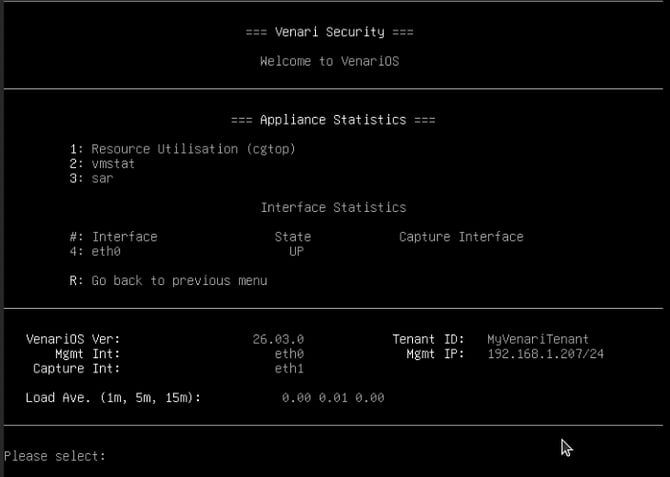
Monitor resource usage and per-interface statistics.
Built-in statistics tools
| Option | Purpose |
|---|---|
|
1
|
Resource utilisation : interactive cgroup/top style view (
systemd-cgtop) |
|
2
|
vmstat : ongoing VM and CPU statistics
|
|
3
|
sar : system activity reporting
|
Interface list
The menu then lists each network interface with:
- Interface name
- Operational state (UP/DOWN; capture interfaces may show UP when receiving traffic even if the link state appears otherwise)
- Whether the interface is designated as a Capture Interface (marked when configured as capture)
4. Venari Configuration Menu
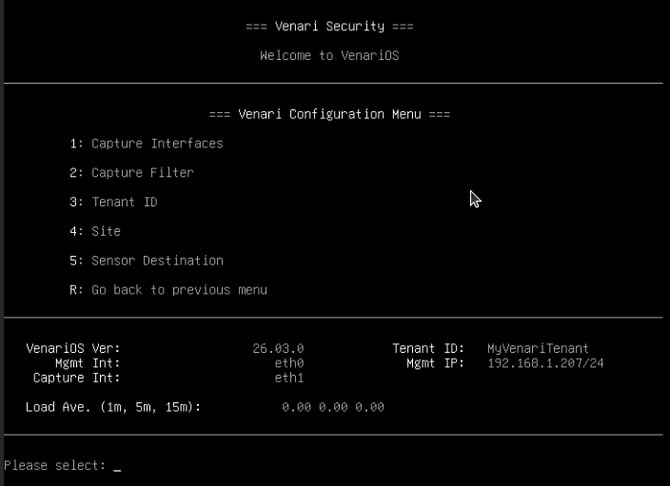
These settings tie the sensor to your Venari platform deployment and define what traffic is observed.
| Option | Name | Purpose |
|---|---|---|
|
1
|
Capture Interfaces
|
Choose which network interfaces perform metadata capture. The screen lists interfaces (state, MAC, IP) and lets you toggle capture on/off per interface. After changes, restart the
venari_capture_supervisor service for capture changes to take effect. On AWS or Azure sensors, the list may be restricted to relevant capture interfaces (e.g. capture-* style interfaces). |
|
2
|
Capture Filter
|
View and optionally change the Berkeley Packet Filter (BPF) expression used for capture. On-screen notes explain BPF usage; the appliance ships with a default filter oriented toward TLS metadata (TCP/UDP, IPv4/IPv6).
|
|
3
|
Tenant ID
|
View or set the tenant identifier used to associate this sensor with your organization/tenant in the platform.
|
|
4
|
Site
|
View or set a site label for this sensor (alphanumeric with dashes/underscores; length limits apply).
|
|
5
|
Sensor Destination
|
View or set the platform destination as an FQDN : where the sensor sends data (validated on input).
|
5. Test Insights Trigger
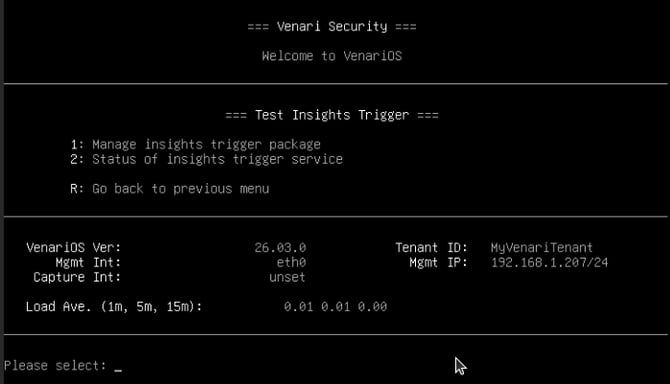
Used for validation and demonstration of Insights-related triggering (for example in proof‑of‑concept or testing).
| Option | Name | Notes |
|---|---|---|
|
1
|
Manage insights trigger package
|
Install/manage the trigger package
|
|
2
|
Status of insights trigger service
|
Service status
|
|
3
|
Manage traffic on capture interface
|
Shown only if the appliance has the insights PCAP directory present: optional traffic tooling
|
6. Active Scan Menu (vScout)
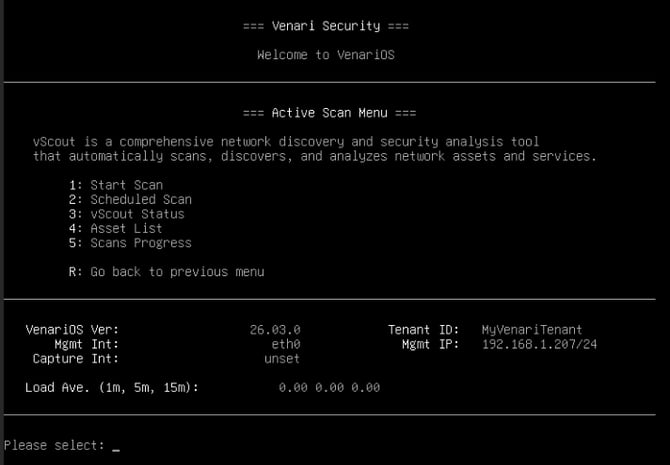
vScout provides active internal network discovery and security analysis (scanning and asset visibility). The menu explains that it discovers and analyzes assets and services.
| Option | Name | Purpose |
|---|---|---|
|
1
|
Start Scan
|
Run a target scan by entering a CIDR, single IP, or hostname. The input is validated before the scan runs.
|
|
2
|
Scheduled Scan
|
Submenu to add/remove/list scheduled scan targets and test scheduled scan integration (vScout manages schedules).
|
|
3
|
vScout Status
|
Confirms whether the vScout daemon is running and shows scanner status output.
|
|
4
|
Asset List
|
Lists discovered assets via the vScout CLI when the daemon is running.
|
|
5
|
Scans Progress
|
Uses the local vScout HTTP API (default localhost:8419) to list scans and show progress per scan. Requires the daemon (and API) to be available.
|
Scheduled Scan submenu
| Option | Purpose |
|---|---|
|
1
|
Add Target
|
|
2
|
Remove Target
|
|
3
|
View Targets
|
|
4
|
Test Scan: lists schedules via vScout and confirms scheduling behavior
|
7. Support Menu
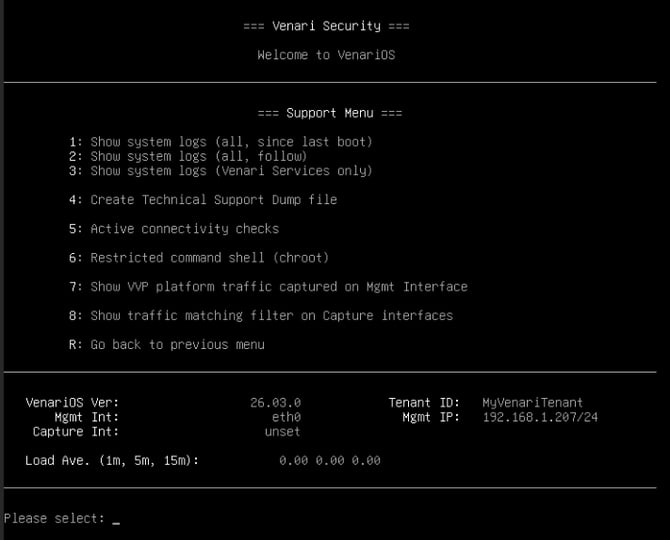
Tools for troubleshooting and Venari Support interactions.
| Option | Name | Purpose |
|---|---|---|
|
1
|
Show system logs (all, since last boot)
|
journalctl for the current boot |
|
2
|
Show system logs (all, follow)
|
Live-following journal
|
|
3
|
Show system logs (Venari Services only)
|
Journal for venari_* units
|
|
4
|
Create Technical Support Dump file
|
Generates a package for support analysis
|
|
5
|
Active connectivity checks
|
Runs connectivity diagnostics
|
|
6
|
Restricted command shell (chroot)
|
Limited shell for advanced troubleshooting
|
|
7
|
Show VVP platform traffic on Mgmt Interface
|
tshark on management interface for Kafka-related TCP ports used toward the platform
|
|
8
|
Show traffic matching filter on Capture interfaces
|
tshark on any interface using the configured capture filter
|
8. User Administration Menu
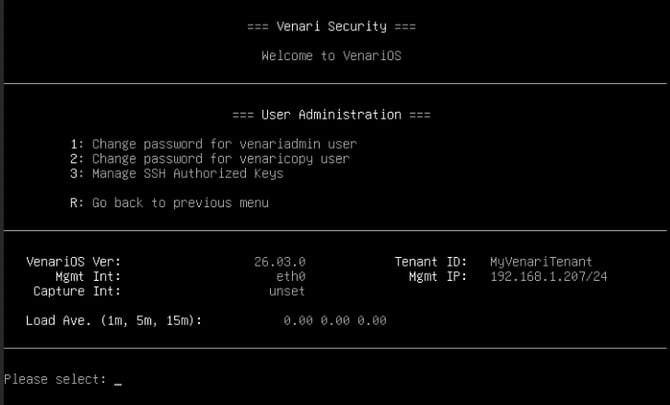
| Option | Name | Purpose |
|---|---|---|
|
1
|
Change password for venariadmin
|
Interactive password reset flow
|
|
2
|
Change password for venaricopy
|
Interactive password reset flow
|
|
3
|
Manage SSH Authorized Keys
|
Manage SSH keys for administrative access
|
Practical notes for operators
- Capture changes: After editing Capture Interfaces or Capture Filter, plan for a service restart (via Appliance Operations → Reboot or Shutdown) so capture processes pick up configuration.
- Cloud sensors: On AWS or Azure, capture interface selection and statistics may reflect decapsulated capture interfaces rather than every physical NIC.
- vScout: Active Scan features depend on vScout being installed, running, and up to date (Venari VScout Updates).
- Support: Before opening a ticket, use Create Technical Support Dump and connectivity checks to shorten resolution time.
Additional runbook steps:
Generate a Technical Support Dump
Use this when Venari Support asks for diagnostics.
- From the Main Menu, go to Support Menu (
S). - Select
4— Create Technical Support Dump file. - Wait for the process to complete (it may take a few minutes).
-
The sensor creates a file named like:
Venari-Dump-<hostname>-<YYYY-MM-DD-HH.MM.SS>.tar.gzIt is then moved to:
/home/venaricopy/You can retrieve it via SFTP using the
venaricopyaccount from your workstation, for example:sftp venaricopy@<sensor-ip>sftp> lssftp> get Venari-Dump-<hostname>-<timestamp>.tar.gzIf needed, set/reset the
venaricopypassword from: Main Menu → User Administration Menu → 2 (Change password for venaricopy user).Deletion policy: dump files in
/home/venaricopyare cleaned automatically by a daily job.
The cleanup runs at 02:00 and removes matching dump files older than roughly 24 hours.
Best practice is to download the file immediately after generation.
Tip: Run this soon after reproducing an issue so logs and service state are still fresh.
Check the sensor public IP (as seen from the sensor)
To confirm the egress/public IP currently used by the sensor:
- From the Main Menu, open Support Menu (
S). - Select
5: Active connectivity checks. - Review the connectivity output; this check is the recommended menu path to confirm externally visible connectivity details from the sensor itself.
This is the value typically needed for allowlisting/whitelisting with Venari Support.
Quick check: is mirrored traffic really being captured?
Use this 3-step verification:
-
Confirm capture interfaces are configured:
Main Menu →4Venari Configuration →1Capture Interfaces
Ensure the expected interface(s) are marked as capture. -
Check packet activity on the capture interface:
Main Menu →3Appliance Statistics
Open the capture interface entry and verify counters/rates are increasing while mirrored traffic is expected. -
Validate traffic matches the active filter:
Main Menu →SSupport Menu →8Show traffic matching filter on Capture interfaces
If mirrored traffic is present and matches your configured capture filter, packets should appear live.
If no traffic appears: verify your mirror source/session configuration, capture filter scope, and that the correct capture interface is selected.
Need Help?
If you have any questions or need assistance. Please contact the Venari Support.